


A ChatGPT Business Profile is a managed business listing, not an account that controls ChatGPT's recommendations. Use Business Hub to check the route available to your business. Keep profile setup, website visibility and customer enquiries as separate tasks.
Start with the right setup route
Before collecting logos or writing a description, establish whether you are claiming an existing listing or using an available add-business option. The correct route depends on the actual business and location. A business that sells online and a local storefront may see different options.
OpenAI’s current setup guidance limits local stores and restaurants to claiming an existing U.S. listing. Eligible online businesses may see an option to add a business. Check the current eligibility instructions before proceeding. That distinction matters for an agency helping businesses in several countries.
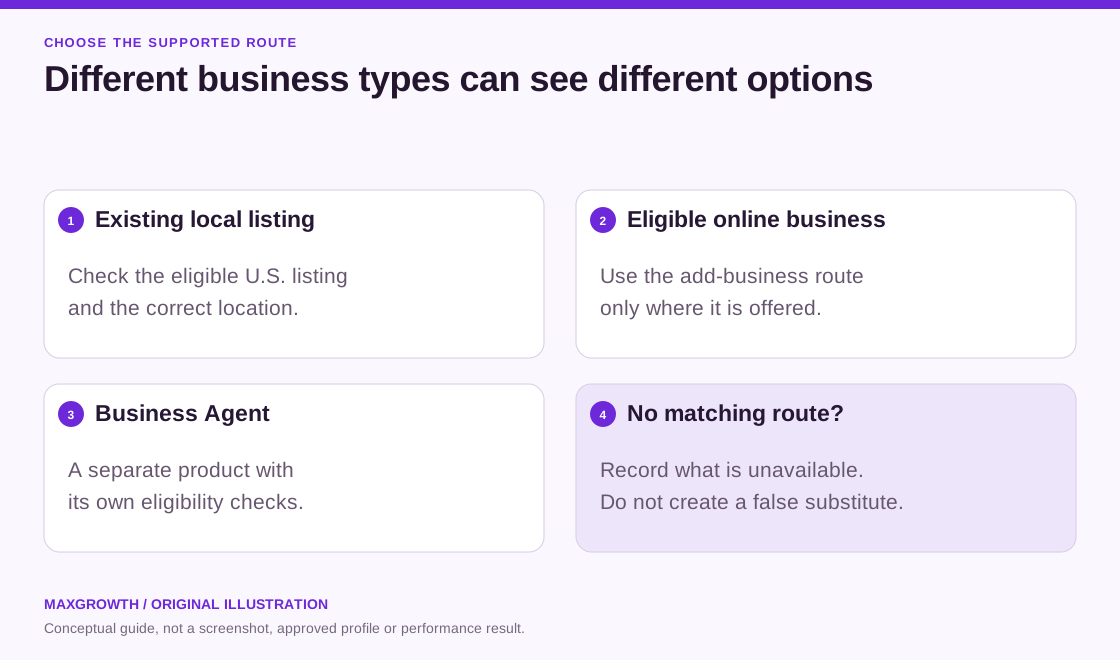
This is different from creating a Business Agent. An agent is a separately available customer conversation experience. Its eligibility should not be used as a shortcut for deciding whether a business can manage a profile. OpenAI’s Business Agent policy covers that additional product.
Prepare the information before you open the flow
Keep a small setup worksheet ready:
- The business name and the website customers should visit.
- The location or service coverage the business can substantiate.
- The person authorized to manage the profile and complete verification.
- Access to the business contact route or domain administrator, if needed.
- A factual description, a suitable category and images you have permission to use.
- The owner of any existing listing, so you can avoid a duplicate.
For an agency, agree who supplies the facts and who performs account actions. The client should know which account retains control. These practical decisions prevent a setup task from becoming an ownership problem later.
Step 1: Find the correct business
Open Business Hub while signed in and look for the business by its actual name. Review the matching website and location before selecting a result. Similar names are not proof that a result belongs to the business you represent.
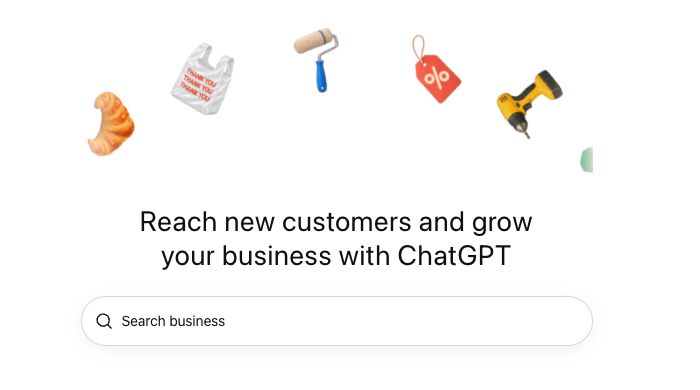
The start screen also states that continuing accepts the Businesses in ChatGPT Terms. The authorized representative should review those terms before proceeding. This guide does not accept them or submit a claim on your behalf.
If nothing matches, use only the supported option shown for that business type. Do not create an unrelated online identity to get around a missing local listing. The Businesses in ChatGPT policy requires accurate representation and prohibits fake or duplicate profiles.
Record the starting state: matching listing found, add-business option available, ownership issue or unavailable route. That record helps the owner understand what has actually been established.
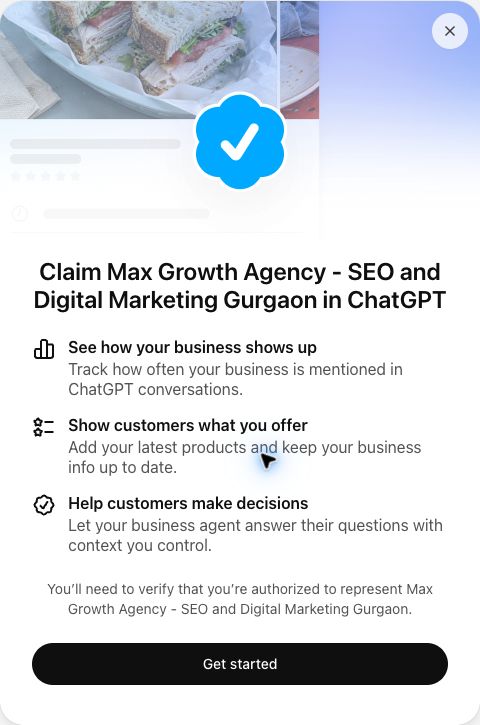
Review the account shown on the next confirmation screen before continuing. A browser’s Google profile and its signed-in ChatGPT account can differ. Use the account agreed with the business owner, rather than assuming the browser profile identifies it.
Step 2: Use the verification method offered
Verification establishes the connection between the representative and the business. OpenAI documents routes involving a business phone, business email, website domain or Shopify. Follow the method offered in your account rather than assuming every business receives every option.
If you need a domain administrator, prepare the request before generating a record. Tell them which business and domain the request concerns, and ask for the required fields to be copied exactly. Do not send a screenshot containing unrelated DNS records or account details.
If the flow asks for a DNS TXT record
Treat the information on your own verification screen as the source of truth. The visual below is a worksheet, not a record you can paste into your DNS.
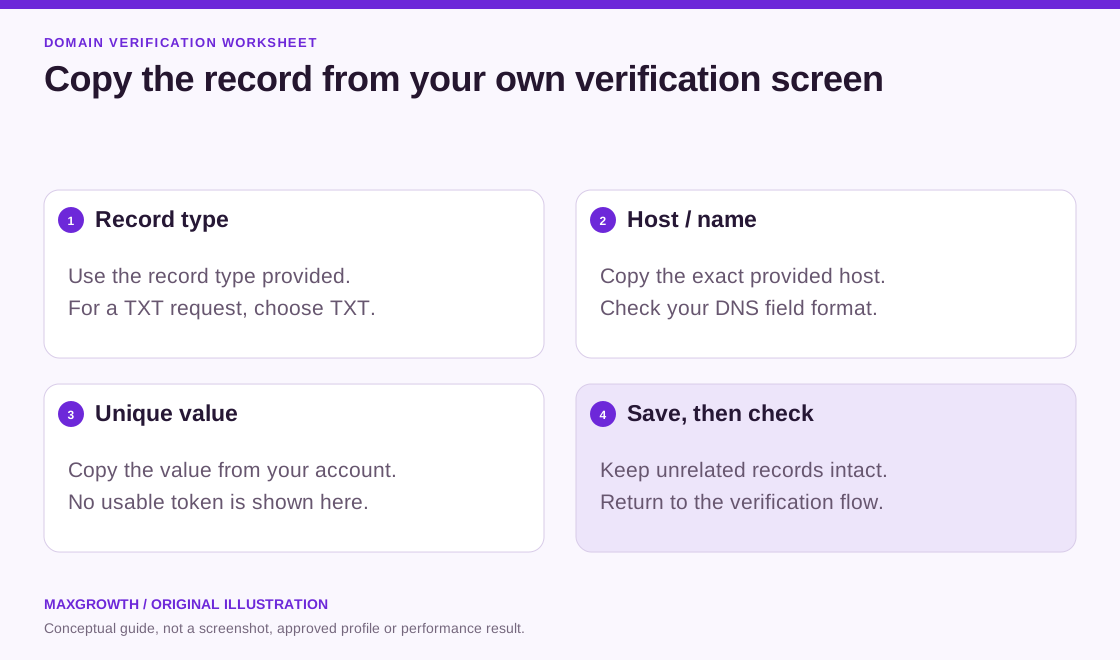
Use this working sequence:
- Identify the DNS provider that actually hosts the domain’s records.
- Copy the requested record type, host and value from the verification screen.
- Check how that provider expects hostnames to be entered. Some interfaces display the domain alongside the field.
- Add the requested record without replacing unrelated website or email records.
- Return to the verification flow and check the result shown there.
Keep a note of the record added and the person who made the change. If the screen issues a new value or shows an expiry, follow that current instruction. We do not treat another business’s setup time or token expiry as a universal deadline.
Step 3: Complete required identity checks
Business control and representative identity are separate checks. OpenAI’s instructions describe an additional Persona verification stage before protected management features become available. The authorized representative should complete this through the official route.
The owner can keep an internal checklist of what is pending without sharing the underlying documents in an ordinary marketing form or group chat. If a check is awaiting review, record that state accurately rather than describing the account as verified.
Read the screen before continuing: OpenAI notes that approval of some newly created profiles can publish them automatically. Have the business information ready for that possibility. Use the official setup article for current account-specific instructions.
Step 4: Prepare clear business information
Write for a person deciding whether the offering fits. A description should explain what the business does, who it serves and the relevant scope. Avoid a list of keywords or unsupported claims about being the leading provider.
For a service business, an informative sentence could identify the actual service, supported customer type and real coverage. The business should approve each fact. Details about pricing, opening hours, qualifications and service areas should agree with the business’s current records.
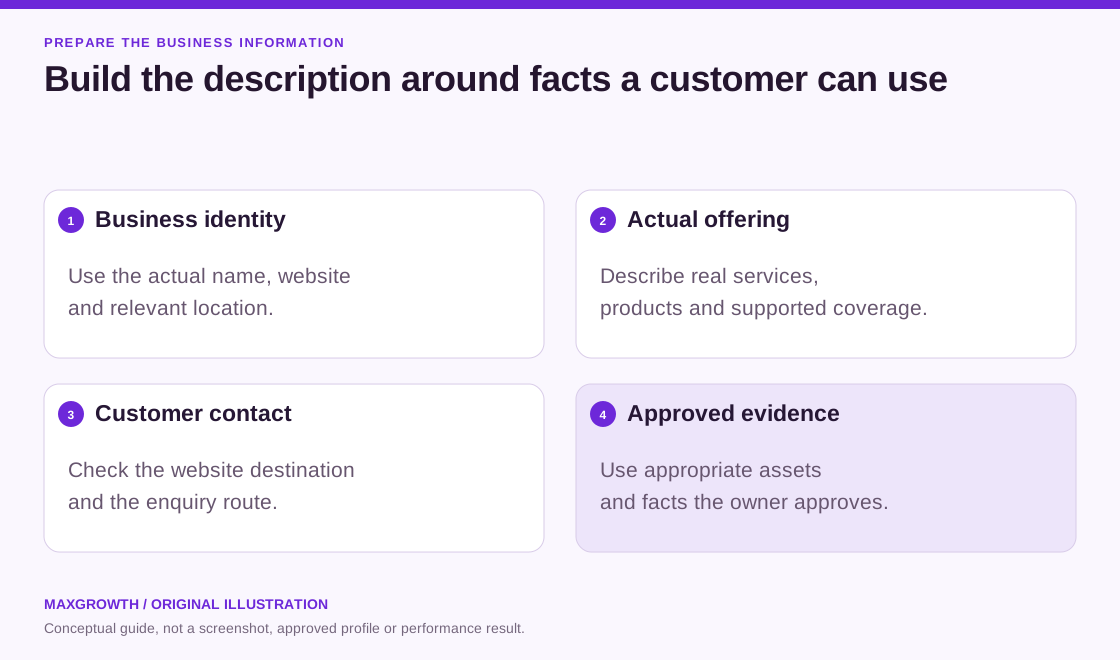
Review the customer journey too. Open the website link, check its phone layout and confirm that the destination explains the service being described. A correct listing connected to an unclear or broken page still creates friction for the visitor.
Use your own approved logo or appropriately licensed photographs. A picture found in a competitor’s guide is not a source of permission to publish it on your profile. The same principle applies to examples, client names and testimonials.
Step 5: Check the published state
Separate information prepared for review from information submitted to the platform, and both from information actually visible to customers. Keep the status and date beside each important change.
After an update appears, review the details as a customer would. Check the website destination, category and explanation of the offering. If the business changes its services or contact route, assign someone to keep the managed details current.
Do not expect a profile edit to rewrite every independent answer immediately. OpenAI explains that claiming changes the information you can manage; it does not guarantee preferential placement or sales. A profile is one part of the wider information available about a business.
Step 6: Read insights with the right context
OpenAI describes Business Hub as a source of aggregated business activity, including mentions, website clicks and discovery topics. Its launch explanation also distinguishes those insights from access to customer conversations.
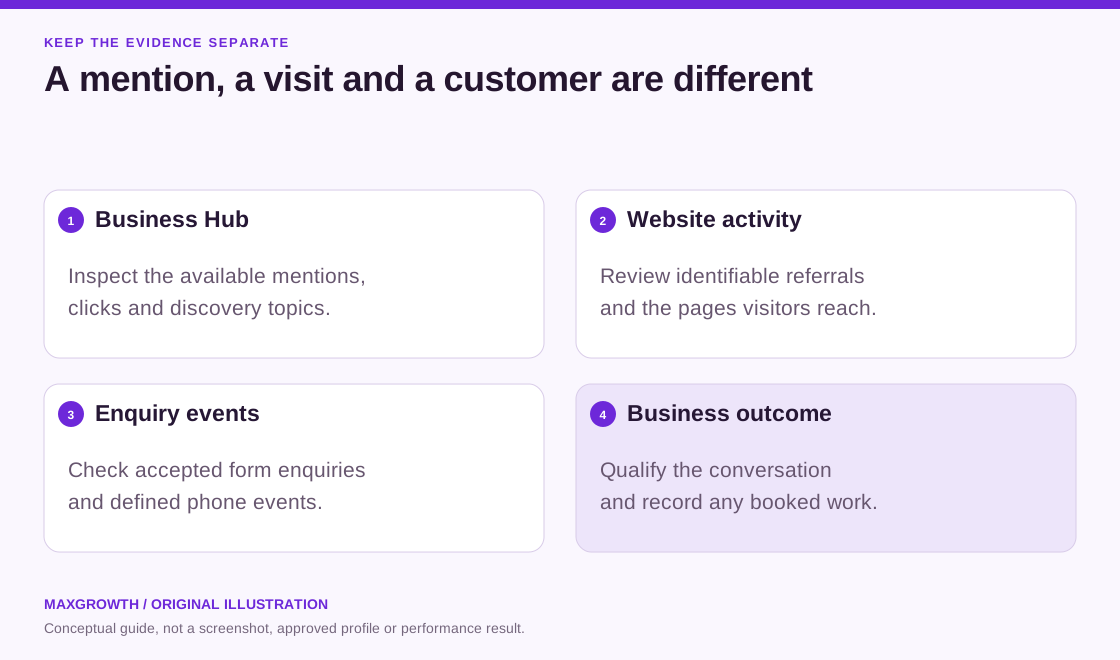
Use the source’s definition and date range. The setup guidance describes a rolling 28-day insights window and warns that a blank metric need not represent zero activity. Preserve those conditions when preparing a report.
For practical reporting, keep these layers separate:
| Evidence layer | What to inspect | Useful next question |
|---|---|---|
| Business Hub | Available mentions, clicks and topics | Is the managed business information clear and current? |
| Website analytics | Identifiable referrals and landing activity | Did visitors reach the intended service page? |
| Enquiry tracking | Accepted form submissions and defined phone events | Did the contact route work, and what was recorded? |
| Business follow-up | Qualified conversations and booked work | Was the enquiry useful to the business? |
A website click is not a booked job. A phone-button click does not establish that a conversation happened. If the source of an enquiry is unknown, leave it unknown rather than assigning it to ChatGPT.
If something does not work
| Situation | Practical next action |
|---|---|
| The expected listing is missing | Recheck the business type, market and supported route. Do not create a false substitute. |
| The business appears to belong to someone else | Confirm the current owner and use the platform’s supported ownership-help route. |
| The domain check does not complete | Compare the requested record with what was added at the actual DNS provider, then follow the current on-screen instructions. |
| Verification is pending | Record the pending state and review the official request for information. Avoid assuming an approval date. |
| A profile field or insight is unavailable | Record which feature is missing and review the current eligibility and verification guidance. |
| A submitted detail is not visible yet | Distinguish a saved change from a published update and check its status. |
Before contacting support, prepare a concise description of the step and error. Share a relevant screenshot with sensitive details removed. Do not include a complete DNS panel, identity document or unrelated customer information.
Connect the profile to your website work
Use profile setup to improve business accuracy, then consider the separate work needed for website discovery and customer decisions. Useful service pages explain the offering, show appropriate evidence and provide a clear enquiry route. Consistent external records support that same clarity.
Our ChatGPT Business Profile optimization service covers eligibility checks, preparation and an agreed profile-management scope. For website information and discovery, use ChatGPT SEO services. For repeatable question checks and reporting across agreed services, see AI search visibility tracking.
These tasks can sit inside a coordinated AEO and GEO program, with existing SEO responsibilities identified before implementation. That keeps the setup task connected to the customer journey while making the work and measurements clear.
Frequently asked questions
Should an agency or the business owner control the setup?
Agree the ownership and working responsibilities first. The authorized representative handles required checks, and the agency supports approved information and access. Keep a handover record of who manages each account and what remains open.
Do I need to write a separate description just for AI?
Write a factual explanation that helps a customer understand the business. Review it against the actual offering and website rather than adding a collection of promotional keywords.
What should I send someone who manages our DNS?
Share the business and domain context, followed by the exact record type, host and value from your own verification screen. Use an appropriate private working channel and ask them to confirm what they added. The diagram in this guide does not contain a usable verification record.
Can this replace our website or local SEO work?
A managed listing and a useful website perform different jobs. Keep the business information accurate, then review whether the linked website answers customer questions and supports the enquiry process. Local businesses can coordinate this with their existing local SEO scope.
What should we review after setup?
Confirm the visible details, the website destination and the account owner. Review available insights alongside website and enquiry evidence, using the original source periods. Assign responsibility for later changes to business information.
Official references and visual notes
Platform instructions checked on 17 November 2026:
- Business Hub setup and verification.
- Businesses in ChatGPT overview.
- Business information and representation policy.
- Business Agent policy.
- Official launch and insight overview.
The labeled diagrams are original MaxGrowth illustrations, not account screenshots or proof of a successful claim. The Business Hub start and claim-introduction screens are our own cropped captures of OpenAI’s interface, used to explain the setup steps. No images or article text have been copied from another agency’s guide. Platform interfaces and eligibility can change; use the current options shown in your own account when acting.